
A complete beginner guide to updating Flutter app icons on Android and iOS using one image and a simple package setup.
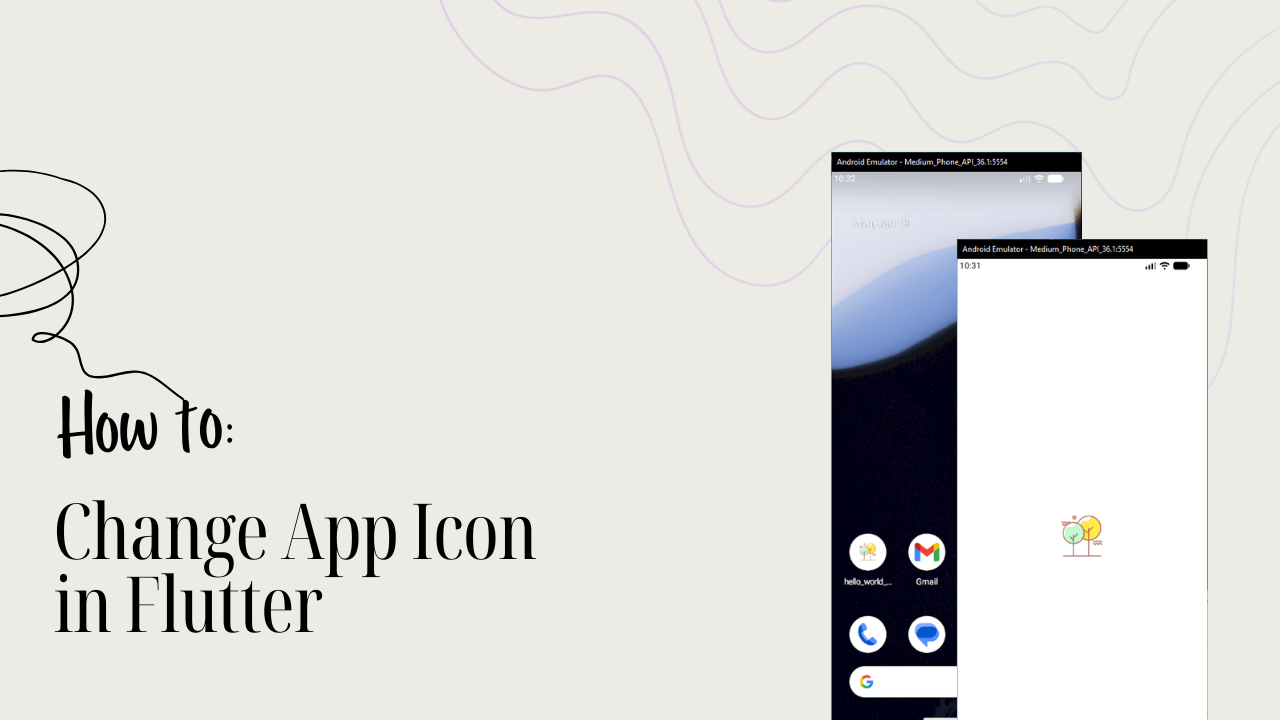
Changing the app icon is one of the first branding steps every Flutter developer should learn.
Whether you’re building a simple demo or a production app, a custom app icon makes your Flutter application look professional and polished.
In this guide, we’ll walk through how to change the app icon in Flutter using a beginner-friendly approach.
We’ll assume you already have a simple Flutter project called hello_world_toggle and you just want to replace the default Flutter icon with your own custom one—cleanly and correctly.
Refer Hello World Toggle Project
By the end of this tutorial, your Flutter app will have a shiny new icon on both Android and iOS
Understanding How App Icons Work in Flutter
Flutter itself does not directly manage app icons. Instead, app icons are handled by the platform-specific folders—Android and iOS—inside your Flutter project.
Flutter simply acts as a bridge between your Dart code and these native platforms.
Before changing the icon, it’s important to understand that each platform requires multiple icon sizes to support different screen densities.
Manually creating and placing all these icons is error-prone, which is why we’ll use a dedicated Flutter package.
Key concepts to know:
- Flutter apps have separate Android and iOS configurations
- App icons must exist in multiple resolutions
- Using a package automates icon generation
- One source image is enough when done correctly
Once you understand this flow, changing app icons becomes a repeatable 2–3 minute task for every new project.
Preparing Your App Icon Image
Your app icon image is the foundation of everything that follows. A poorly prepared image will result in blurry, cropped, or rejected icons—especially on the Play Store or App Store.
Before touching Flutter code, you need to prepare a clean, square image that Flutter can convert into platform-specific icons.
Icon preparation checklist:
- Image must be square (1:1 ratio)
- Recommended size: 1024 × 1024 px
- Format: PNG
- No transparency for Android adaptive icons
- Centered design with padding (avoid edge clipping)
Once your image is ready, place it inside your project at:
hello_world_toggle/assets/icon/app_icon.pngThis single image will be used to generate all required icon sizes automatically.
Adding flutter_launcher_icons Package
Manually generating icons is outdated and risky. The flutter_launcher_icons package is the industry-standard way to change app icons in Flutter safely and consistently.
This package reads your icon image and generates all required Android and iOS assets with one command.
Steps to add the package:
- Open
pubspec.yaml - Add the package under
dev_dependencies - Configure icon paths and platforms
- Save the file
Here’s what you’ll add to your pubspec.yaml:
dev_dependencies:
  flutter_test:
    sdk: flutter
  flutter_launcher_icons: ^0.14.4

flutter_icons:
  android: true
  ios: true
  image_path: "assets/icon/app_icon.png"
Code language: JavaScript (javascript)
After saving, Flutter now knows where your icon is and which platforms to generate icons for.
Installing Dependencies Properly
After editing pubspec.yaml, Flutter needs to download and link the new package. Skipping this step is one of the most common beginner mistakes.
You must explicitly fetch the dependencies so Flutter can use the icon generator.
Run this command in terminal:
- Navigate to project root
- Use Flutter’s package manager
- Wait for successful completion
flutter pub getCode language: JavaScript (javascript)Once completed, Flutter is fully aware of the flutter_launcher_icons package and ready to generate icons.
Generating App Icons Automatically
This is the magic moment. With one command, Flutter will create all required app icon files for Android and iOS—correct sizes, correct folders, zero manual work.
Make sure you’re still inside the hello_world_toggle directory before running the command.
Command to generate icons:
- Uses your configuration from
pubspec.yaml - Replaces default Flutter icons
- Updates native platform folders
flutter pub run flutter_launcher_iconsAfter this runs successfully, your app icon is technically changed—even if you can’t see it yet.
Verifying the Icon on Android and iOS
Flutter caches builds aggressively, so icon changes may not appear immediately unless you rebuild correctly.
To ensure your new app icon shows up, you need to do a clean rebuild.
Recommended verification steps:
- Stop the running app
- Run
flutter clean - Rebuild the app
- Check device launcher
flutter clean
flutter run
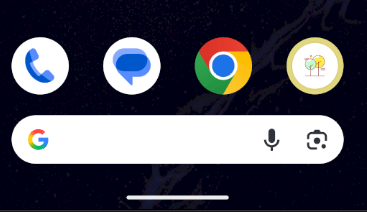
Now look at your device or emulator home screen—your custom app icon should be visible instead of the default Flutter logo.
Common Issues and How to Fix Them
Even when following steps correctly, a few common mistakes can cause the icon not to update. These are normal and easy to fix once you know what to look for.
Most common problems:
- App icon not updating due to cache
- Incorrect image path in
pubspec.yaml - Image not square or too small
- Emulator not refreshed
If icons don’t change:
- Uninstall the app completely
- Restart emulator or device
- Re-run icon generation command
Once fixed, icon changes are instant and permanent.
Final Thoughts: Branding Your Flutter App
Changing the app icon might feel like a small step, but it’s a huge psychological milestone. The moment your Flutter app has its own identity, it stops feeling like a tutorial and starts feeling like your product.
What you achieved here:
- Learned how Flutter handles app icons
- Used a professional Flutter package
- Avoided manual native configuration
- Set up a reusable workflow for future apps
Once you’ve done this once, you’ll never forget it.
🌱 Keep Building with Flutter
Your app now has its own identity, and that’s just the beginning. Join my free Flutter class and let’s continue building real Flutter apps together.

Comments are closed.