Master Flutter FocusNode to control TextField focus, keyboard navigation, and seamless user input with practical examples.
Ever filled out a form in an app where tapping “Next” on the soft keyboard did absolutely nothing? Or maybe the keyboard popped up out of nowhere, blocking the screen at the worst possible time?
It feels clunky, frustrating, and downright unpolished.
When you build app screens in Flutter, managing user focus isn’t just a tiny visual detail. It is the secret sauce that makes your application feel fast, responsive, and effortless to use.
In this complete Flutter FocusNode guide, we are going to master keyboard interactions step by step. You will learn how to set focus on TextField programmatically, move focus automatically between inputs, listen to focus changes, handle dialogs, and clean up your code properly.
Grab your favorite beverage, open up your editor, and let’s turn your forms into a smooth, delightful experience!
- What is FocusNode?
- Request Focus Programmatically
- Move Focus to Next Field
- Remove Focus
- Detect Focus Changes
- Focus on Page Load
- Focus After Validation
- Focus Inside Dialogs
- Focus Inside BottomSheets
- Common FocusNode Mistakes
- Disposing FocusNode Correctly
- Wrap-Up & Next Steps
- Ready to Go Beyond the Basics?
- Ready to Build Professional Flutter Apps?
What is FocusNode?
Before we start writing code, let’s understand what is happening under the hood when a user taps an input field.
In Flutter, a FocusNode is an object that can receive keyboard focus. Think of it as a small control badge. When a widget—like a TextField—holds this badge, it means two things:
- It is currently active and ready to accept input from the keyboard.
- Flutter knows to direct all key events directly to that specific widget.
When you work with a Flutter TextField, focus usually happens automatically. A user taps the field, Flutter assigns focus to it, and the onscreen keyboard opens.
However, automatic behavior only gets you so far. What if you want to shift focus to the next field as soon as someone finishes typing their phone number? Or what if you want to get focus status to change a border color dynamically?
That is where explicit focus management comes in. By creating and assigning your own FocusNode, you take full manual control over how keyboard focus flows through your app.
Here is how a basic FocusNode attaches to a TextField:
import 'package:flutter/material.dart';

void main() {
  runApp(const MyApp());
}

class MyApp extends StatelessWidget {
  const MyApp({super.key});

  @override
  Widget build(BuildContext context) {
    return MaterialApp(
      title: 'Focus Node',
      debugShowCheckedModeBanner: false,
      theme: ThemeData(
        useMaterial3: true,
        colorSchemeSeed: Colors.blue,
        brightness: Brightness.light,
      ),
      home: const HomeScreen(),
    );
  }
}

class HomeScreen extends StatefulWidget {
  const HomeScreen({super.key});

  @override
  State<HomeScreen> createState() => _HomeScreenState();
}

class _HomeScreenState extends State<HomeScreen> {
  // 1. Declare your FocusNode
  final FocusNode _myFocusNode = FocusNode();

  @override
  void dispose() {
    // 2. Always dispose it when done!
    _myFocusNode.dispose();
    super.dispose();
  }

  @override
  Widget build(BuildContext context) {
    return Scaffold(
      appBar: AppBar(title: const Text('What is FocusNode?')),
      body: Padding(
        padding: const EdgeInsets.all(16.0),
        child: Column(
          children: [
            // 3. Attach the FocusNode to your TextField
            TextField(
              focusNode: _myFocusNode,
              decoration: const InputDecoration(
                labelText: 'Tap here to see flutter textfield focus in action',
                border: OutlineInputBorder(),
              ),
            ),
          ],
        ),
      ),
    );
  }
}
Code language: Dart (dart)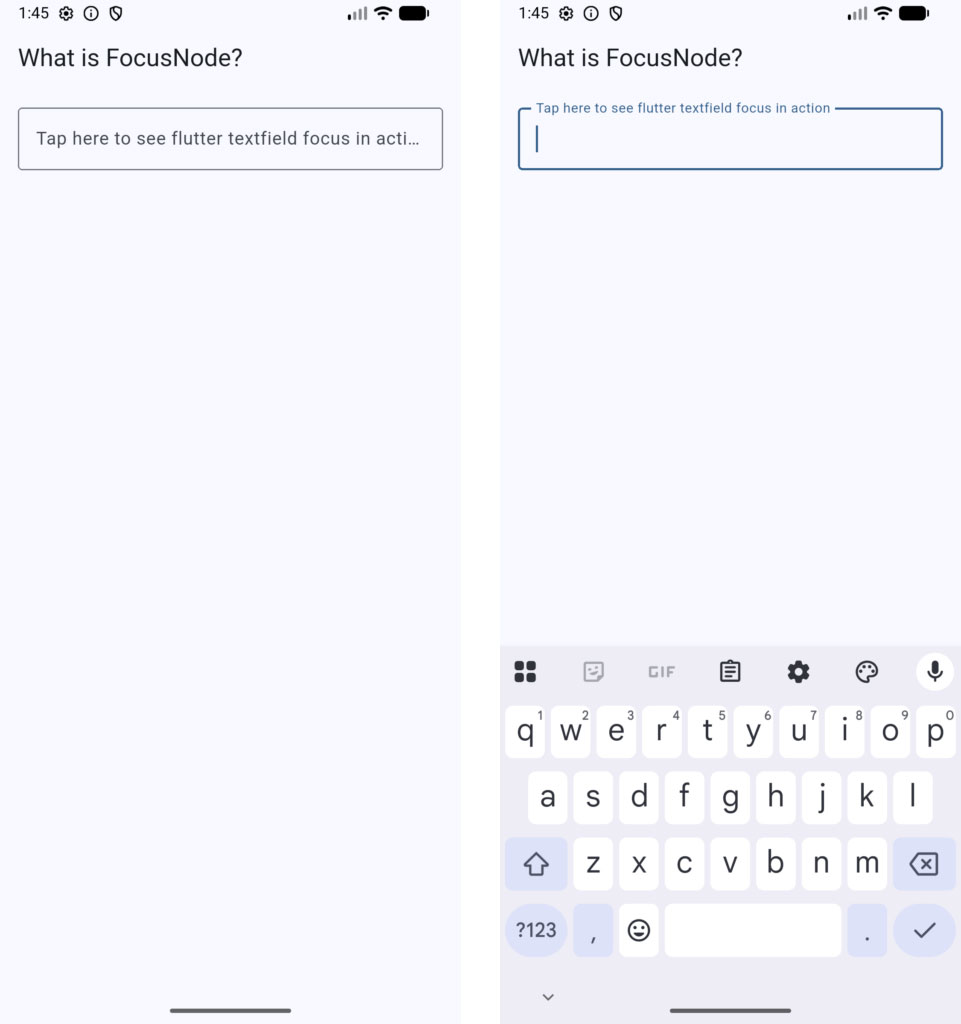
Key Takeaways
- A flutter focusnode acts as a control handle for keyboard focus.
- Creating a
FocusNodelets you monitor and change focus programmatically. - Always dispose of your focus nodes in
dispose()to prevent memory leaks!
Request Focus Programmatically
Sometimes you don’t want to wait for the user to tap an input field. You want your code to activate a field right away.
For example, when a user clicks an “Edit Profile” button, you might want to immediately set focus on TextField so they can start typing right away.
To do this in Flutter, we use the requestFocus() method on our FocusNode.
How It Works
- Attach your
FocusNodeto the targetTextField. - Call
_focusNode.requestFocus()inside a event handler (like anonPressedcallback of a button).
Flutter will immediately highlight that field and open the soft keyboard.
Here is a complete working example. Tap the button to see how we request focus programmatically!
class _HomeScreenState extends State<HomeScreen> {
  // Declare the FocusNode
  final FocusNode _emailFocusNode = FocusNode();

  @override
  void dispose() {
    // Clean up the focus node
    _emailFocusNode.dispose();
    super.dispose();
  }

  void _activateEmailField() {
    // Programmatically request focus
    _emailFocusNode.requestFocus();
  }

  @override
  Widget build(BuildContext context) {
    return Scaffold(
      appBar: AppBar(title: const Text('Request Focus Programmatically')),
      body: Padding(
        padding: const EdgeInsets.all(16.0),
        child: Column(
          crossAxisAlignment: CrossAxisAlignment.stretch,
          children: [
            TextField(
              focusNode: _emailFocusNode,
              decoration: const InputDecoration(
                labelText: 'Email Address',
                border: OutlineInputBorder(),
              ),
            ),
            const SizedBox(height: 16),
            ElevatedButton(
              onPressed: _activateEmailField,
              child: const Text('Focus Email Field'),
            ),
          ],
        ),
      ),
    );
  }
}
Code language: Dart (dart)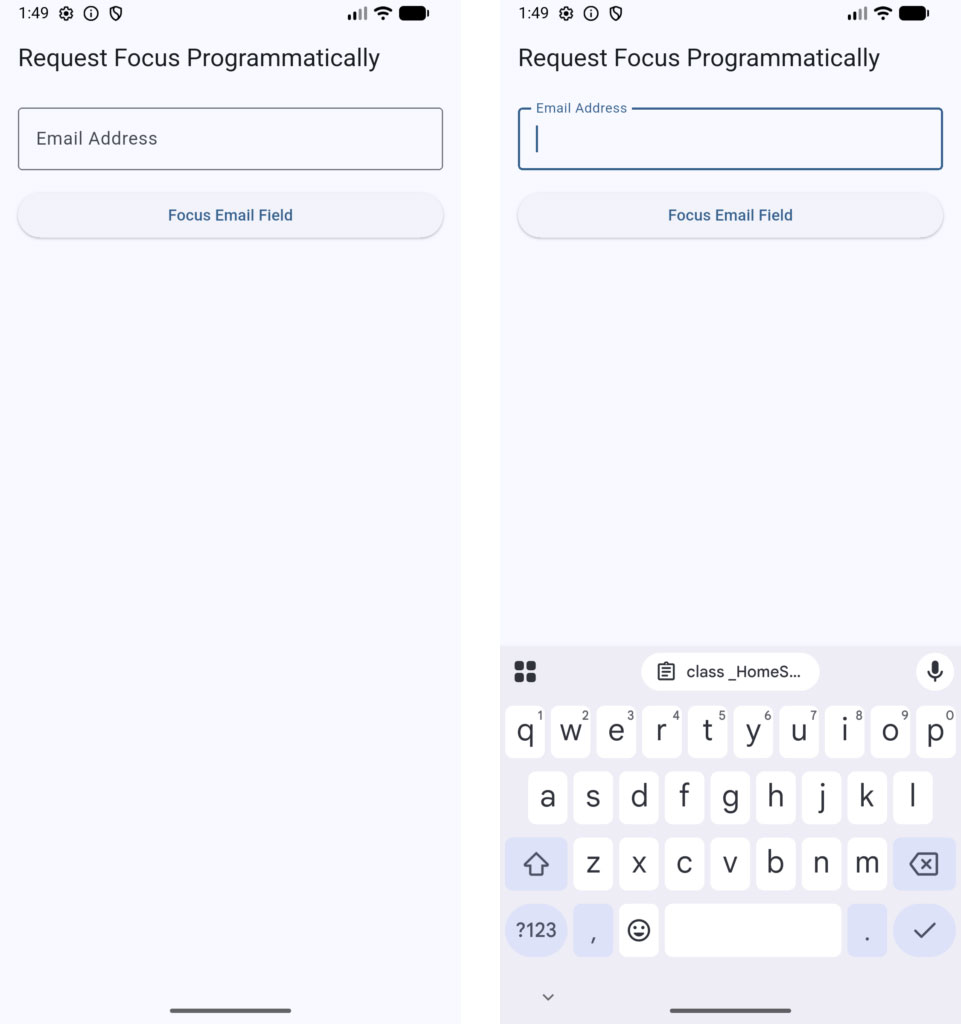
Pro Tip: FocusScope Alternative
You can also use FocusScope.of(context).requestFocus(_emailFocusNode) to achieve the exact same result.
Both approach options trigger Flutter’s focus tree to focus textfield programmatically, making your forms interactive with a single tap.
Move Focus to Next Field
When users fill out forms with Multiple TextFields—like login, signup, or checkout forms—they expect to hit “Next” on their soft keyboard and seamlessly jump to the next input field.
If pressing “Next” does nothing, it disrupts the flow and makes your app feel unpolished.
Flutter gives us two clean ways to move focus to next field:
- The Automatic Approach (
FocusScope.of(context).nextFocus()): Moves focus down the widget tree automatically. - The Explicit Approach (
_nextFocusNode.requestFocus()): Explicitly specifies which field to focus next.
Let’s look at a complete working example using both techniques in a typical login form!
class _HomeScreenState extends State<HomeScreen> {
  // FocusNodes for explicit control
  final FocusNode _firstNameFocusNode = FocusNode();
  final FocusNode _lastNameFocusNode = FocusNode();
  final FocusNode _emailFocusNode = FocusNode();

  @override
  void dispose() {
    _firstNameFocusNode.dispose();
    _lastNameFocusNode.dispose();
    _emailFocusNode.dispose();
    super.dispose();
  }

  @override
  Widget build(BuildContext context) {
    return Scaffold(
      appBar: AppBar(title: const Text('Flutter Next Focus Example')),
      body: Padding(
        padding: const EdgeInsets.all(16.0),
        child: Column(
          children: [
            // First Name Field
            TextField(
              focusNode: _firstNameFocusNode,
              textInputAction: TextInputAction.next,
              decoration: const InputDecoration(
                labelText: 'First Name',
                border: OutlineInputBorder(),
              ),
              onSubmitted: (_) {
                // Approach 1: Move focus automatically to the next input
                FocusScope.of(context).nextFocus();
              },
            ),
            const SizedBox(height: 16),

            // Last Name Field
            TextField(
              focusNode: _lastNameFocusNode,
              textInputAction: TextInputAction.next,
              decoration: const InputDecoration(
                labelText: 'Last Name',
                border: OutlineInputBorder(),
              ),
              onSubmitted: (_) {
                // Approach 2: Explicitly request focus for the email field
                _emailFocusNode.requestFocus();
              },
            ),
            const SizedBox(height: 16),

            // Email Field (Last Input)
            TextField(
              focusNode: _emailFocusNode,
              textInputAction: TextInputAction.done,
              decoration: const InputDecoration(
                labelText: 'Email Address',
                border: OutlineInputBorder(),
              ),
              onSubmitted: (_) {
                // Hide keyboard when done
                _emailFocusNode.unfocus();
              },
            ),
          ],
        ),
      ),
    );
  }
}
Code language: Dart (dart)
Best Practices for Keyboard Handling
- Always set
textInputAction: TextInputAction.nexton all intermediate fields so the action button on the soft keyboard displays a “Next” arrow or text. - On the last field, set
textInputAction: TextInputAction.doneto show a checkmark or “Done” button. - Use
FocusScope.of(context).nextFocus()when your fields follow standard visual order in the layout.
Ready to Go Beyond the Basics?
Learn Flutter the right way with 100+ practical lessons, real projects, and lifetime updates.
⭐ Trusted by 500+ Flutter developers.

Remove Focus
Leaving an active keyboard on the screen when a user is done typing—or when they tap away from an input—can feel awkward and clutter your app’s interface.
To clear active focus and dismiss the soft keyboard, you have two primary methods:
node.unfocus(): Removes focus from a specificFocusNode.FocusManager.instance.primaryFocus?.unfocus(): Clears focus globally across the entire app, regardless of which field currently holds it.
A very common design pattern in mobile apps is tap-outside-to-dismiss. Whenever the user taps outside a TextField, you want the keyboard to close automatically.
Let’s look at how to implement textfield focus out event and dismiss behavior using a GestureDetector:
class _HomeScreenState extends State<HomeScreen> {
  final FocusNode _noteFocusNode = FocusNode();

  @override
  void dispose() {
    _noteFocusNode.dispose();
    super.dispose();
  }

  void _removeFocusGlobally() {
    // Unfocus whatever element currently holds focus
    FocusManager.instance.primaryFocus?.unfocus();
  }

  @override
  Widget build(BuildContext context) {
    // Wrap Scaffold with GestureDetector to catch taps on empty space
    return GestureDetector(
      onTap: _removeFocusGlobally,
      behavior: HitTestBehavior.opaque,
      child: Scaffold(
        appBar: AppBar(title: const Text('Remove Focus Example')),
        body: Padding(
          padding: const EdgeInsets.all(16.0),
          child: Column(
            children: [
              TextField(
                focusNode: _noteFocusNode,
                maxLines: 3,
                decoration: const InputDecoration(
                  labelText: 'Type a note...',
                  border: OutlineInputBorder(),
                  hintText:
                      'Tap anywhere outside to trigger textfield on unfocus',
                ),
              ),
              const SizedBox(height: 16),
              ElevatedButton(
                onPressed: () {
                  // Specific focus node removal
                  _noteFocusNode.unfocus();
                },
                child: const Text('Dismiss Keyboard Explicitly'),
              ),
            ],
          ),
        ),
      ),
    );
  }
}
Code language: Dart (dart)
Pro Tip: Built-In Tap to Dismiss in Flutter 3.0+
If you are using TextField directly, Flutter provides a built-in property called onTapOutside:
TextField(
  focusNode: _noteFocusNode,
  onTapOutside: (event) {
    _noteFocusNode.unfocus();
  },
  decoration: const InputDecoration(
    labelText: 'Tap outside me!',
  ),
)
Code language: Dart (dart)
This single line gives you a clean textfield unfocus event handler without needing to wrap your entire screen layout inside a GestureDetector.
Detect Focus Changes
Want to highlight an input field when the user taps into it? Or maybe validate an email address the moment they switch to another field?
To catch these events, you need to listen for changes in focus state. In Flutter, tracking the textfield on focus and textfield focus out event helps you build responsive, interactive interfaces.
While you can attach custom listeners using addListener(), the cleanest and most reliable way in modern Flutter is to use ListenableBuilder (or AnimatedBuilder).
Because a FocusNode is a Listenable, wrapping your reactive UI in a ListenableBuilder ensures your widgets update instantly the second focus changes!
Here is a complete working example that tracks when a TextField gains or loses focus, updating both the border styling and a status message live:
class _HomeScreenState extends State<HomeScreen> {
  // 1. Declare the FocusNode
  final FocusNode _usernameFocusNode = FocusNode();

  @override
  void dispose() {
    // 2. Always clean up the FocusNode!
    _usernameFocusNode.dispose();
    super.dispose();
  }

  @override
  Widget build(BuildContext context) {
    return Scaffold(
      appBar: AppBar(title: const Text('Detect Focus Changes')),
      body: Padding(
        padding: const EdgeInsets.all(16.0),
        child: Column(
          children: [
            TextField(
              focusNode: _usernameFocusNode,
              decoration: const InputDecoration(
                labelText: 'Username',
                hintText: 'Tap here to see flutter textfield get focus',
                border: OutlineInputBorder(),
              ),
            ),
            const SizedBox(height: 20),

            // 3. ListenableBuilder rebuilds automatically on focus changes
            ListenableBuilder(
              listenable: _usernameFocusNode,
              builder: (context, child) {
                final isFocused = _usernameFocusNode.hasFocus;

                return AnimatedContainer(
                  duration: const Duration(milliseconds: 200),
                  padding: const EdgeInsets.all(16.0),
                  decoration: BoxDecoration(
                    color: isFocused
                        ? Colors.blue.withValues(alpha: 0.1)
                        : Colors.grey.shade100,
                    borderRadius: BorderRadius.circular(12),
                    border: Border.all(
                      color: isFocused ? Colors.blue : Colors.grey.shade300,
                      width: isFocused ? 2 : 1,
                    ),
                  ),
                  child: Center(
                    child: Text(
                      isFocused
                          ? 'Field is FOCUSED (Keyboard is Active)'
                          : 'Field is UNFOCUSED',
                      style: TextStyle(
                        fontWeight: FontWeight.bold,
                        fontSize: 16,
                        color: isFocused ? Colors.blue : Colors.grey.shade700,
                      ),
                    ),
                  ),
                );
              },
            ),
          ],
        ),
      ),
    );
  }
}
Code language: Dart (dart)
Useful FocusNode Properties
_focusNode.hasFocus: Returnstruewhenever this specific node holds active keyboard focus._focusNode.hasPrimaryFocus: Returnstrueif this node is the exact leaf node holding primary focus in the widget tree.
By using ListenableBuilder, you don’t have to worry about manual state synchronization or dropping UI updates—Flutter handles the reactivity for you seamlessly.
Focus on Page Load
Sometimes you want an input field to receive focus automatically as soon as a screen opens—like a search page or an OTP verification screen.
In Flutter, directing focus on screen load gives users an instant invitation to start typing without needing an extra tap.
Flutter provides two clean approaches for this:
autofocus: true(Recommended): The built-in, declarative property.initState()withaddPostFrameCallback: The programmatic option if you need to run checks before focusing.
Method 1: Using autofocus (Easiest & Cleanest)
Simply set autofocus: true directly on your TextField. Flutter automatically focuses this field and pops open the keyboard as soon as the screen renders.
Here is a complete working example:
class _HomeScreenState extends State<HomeScreen> {
  final FocusNode _searchFocusNode = FocusNode();

  @override
  void dispose() {
    _searchFocusNode.dispose();
    super.dispose();
  }

  @override
  Widget build(BuildContext context) {
    return Scaffold(
      appBar: AppBar(title: const Text('Focus on Page Load')),
      body: Padding(
        padding: const EdgeInsets.all(16.0),
        child: Column(
          children: [
            TextField(
              focusNode: _searchFocusNode,
              autofocus: true, // Automatically opens keyboard on page load!
              decoration: const InputDecoration(
                labelText: 'Search Products',
                hintText: 'Start typing...',
                prefixIcon: Icon(Icons.search),
                border: OutlineInputBorder(),
              ),
            ),
          ],
        ),
      ),
    );
  }
}
Code language: Dart (dart)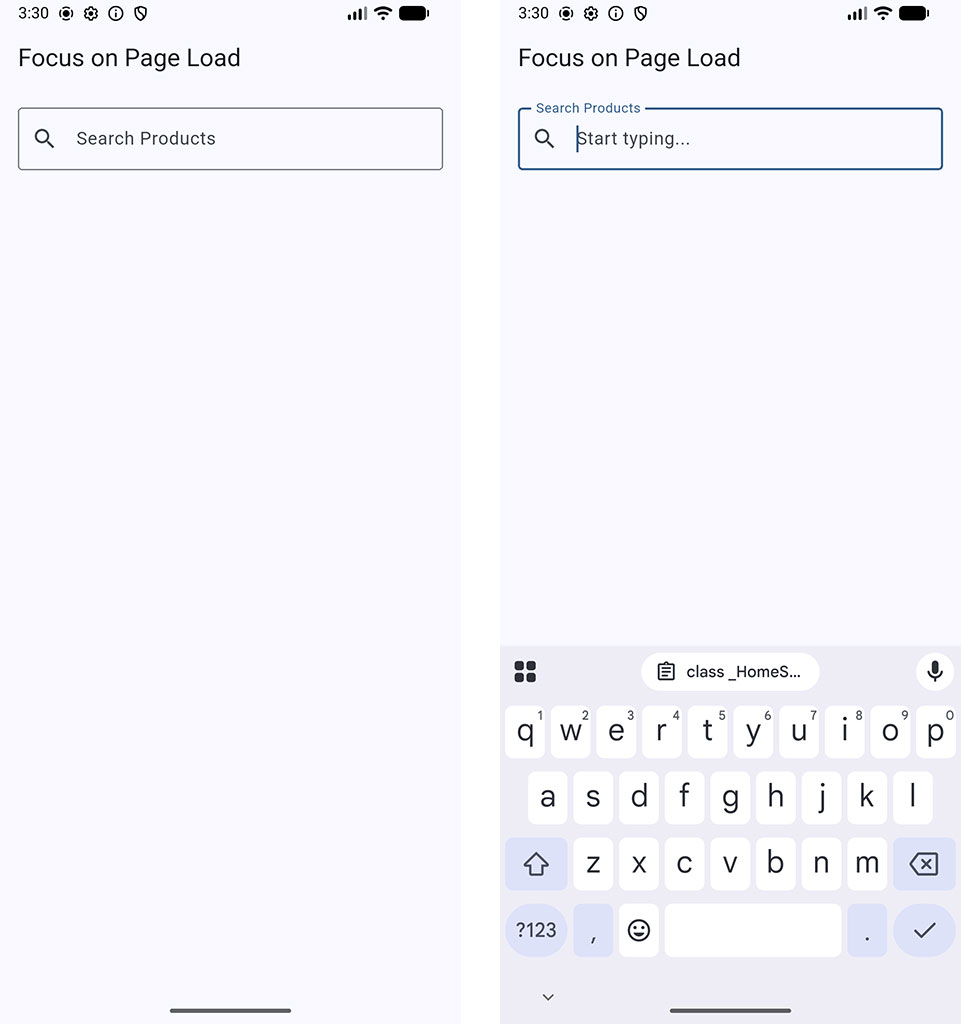
Method 2: Programmatically in initState()
If you need to fetch data or check a setting before opening the keyboard, request focus in initState(). Just remember: never call requestFocus() directly inside initState() without waiting for the build frame to finish first!
@override
void initState() {
  super.initState();
  // Wait for the first frame to render before requesting focus
  WidgetsBinding.instance.addPostFrameCallback((_) {
    _searchFocusNode.requestFocus();
  });
}
Code language: Dart (dart)
Using autofocus: true keeps your state logic lightweight and gives users a seamless entry into your search and input screens.
Focus After Validation
When users fill out a long form and hit “Submit”, nothing is more frustrating than a vague error message that leaves them scrolling around to find what went wrong.
A great user experience automatically shifts focus right back to the invalid field! Connecting Form Validation with focus management allows you to guide users directly to the error so they can fix it immediately.
The Strategy
- Use a
GlobalKey<FormState>to trigger your form validation. - Check which input failed validation.
- Call
requestFocus()on that specific field’sFocusNode.
Here is a complete, working example showing how to jump focus to an invalid field automatically when submission fails:
class _HomeScreenState extends State<HomeScreen> {
  final _formKey = GlobalKey<FormState>();

  // Text Controllers
  final TextEditingController _nameController = TextEditingController();
  final TextEditingController _emailController = TextEditingController();

  // Focus Nodes
  final FocusNode _nameFocusNode = FocusNode();
  final FocusNode _emailFocusNode = FocusNode();

  @override
  void dispose() {
    _nameController.dispose();
    _emailController.dispose();
    _nameFocusNode.dispose();
    _emailFocusNode.dispose();
    super.dispose();
  }

  void _submitForm() {
    // Validate the form
    if (_formKey.currentState!.validate()) {
      ScaffoldMessenger.of(context).showSnackBar(
        const SnackBar(content: Text('Form submitted successfully!')),
      );
    } else {
      // If validation fails, find which field is invalid and focus it!
      if (_nameController.text.trim().isEmpty) {
        _nameFocusNode.requestFocus();
      } else if (!_emailController.text.contains('@')) {
        _emailFocusNode.requestFocus();
      }
    }
  }

  @override
  Widget build(BuildContext context) {
    return Scaffold(
      appBar: AppBar(title: const Text('Focus After Validation')),
      body: Padding(
        padding: const EdgeInsets.all(16.0),
        child: Form(
          key: _formKey,
          child: Column(
            crossAxisAlignment: CrossAxisAlignment.stretch,
            children: [
              // Name Field
              TextFormField(
                controller: _nameController,
                focusNode: _nameFocusNode,
                decoration: const InputDecoration(
                  labelText: 'Full Name',
                  border: OutlineInputBorder(),
                ),
                validator: (value) {
                  if (value == null || value.trim().isEmpty) {
                    return 'Please enter your name';
                  }
                  return null;
                },
              ),
              const SizedBox(height: 16),

              // Email Field
              TextFormField(
                controller: _emailController,
                focusNode: _emailFocusNode,
                decoration: const InputDecoration(
                  labelText: 'Email Address',
                  border: OutlineInputBorder(),
                ),
                validator: (value) {
                  if (value == null || !value.contains('@')) {
                    return 'Please enter a valid email address';
                  }
                  return null;
                },
              ),
              const SizedBox(height: 24),

              // Submit Button
              ElevatedButton(
                onPressed: _submitForm,
                child: const Text('Submit Form'),
              ),
            ],
          ),
        ),
      ),
    );
  }
}
Code language: Dart (dart)
Why This Matters
- Saves time for users on long checkout or signup forms.
- Prevents users from missing hidden errors below the fold.
- Provides instant visual feedback by immediately bringing up the soft keyboard on the exact field requiring attention.
Focus Inside Dialogs
Displaying a dialog with an input field—like asking a user to enter a nickname, rename a file, or enter a discount code—is a common pattern in mobile apps.
However, focus management inside dialogs can sometimes feel tricky. Because dialogs render inside a new route on top of the current screen, managing keyboard focus requires taking two important rules into account:
- Use
autofocus: trueon theTextFieldinside the dialog. This automatically opens the keyboard as soon as the dialog pops up. - Always dismiss focus or pop the dialog properly before navigating away.
Here is a complete, working example showing how to request and manage focus cleanly inside an AlertDialog:
class _HomeScreenState extends State<HomeScreen> {
  String _folderName = 'My Documents';

  void _showRenameDialog() {
    final TextEditingController dialogController = TextEditingController(
      text: _folderName,
    );
    final FocusNode dialogFocusNode = FocusNode();

    showDialog(
      context: context,
      builder: (BuildContext context) {
        return AlertDialog(
          title: const Text('Rename Folder'),
          content: TextField(
            controller: dialogController,
            focusNode: dialogFocusNode,
            autofocus: true, // Automatically focuses and shows keyboard on open
            decoration: const InputDecoration(
              labelText: 'Folder Name',
              border: OutlineInputBorder(),
            ),
          ),
          actions: [
            TextButton(
              onPressed: () {
                dialogFocusNode.dispose();
                dialogController.dispose();
                Navigator.of(context).pop();
              },
              child: const Text('Cancel'),
            ),
            ElevatedButton(
              onPressed: () {
                setState(() {
                  _folderName = dialogController.text;
                });
                dialogFocusNode.dispose();
                dialogController.dispose();
                Navigator.of(context).pop();
              },
              child: const Text('Save'),
            ),
          ],
        );
      },
    );
  }

  @override
  Widget build(BuildContext context) {
    return Scaffold(
      appBar: AppBar(title: const Text('Focus Inside Dialogs')),
      body: Center(
        child: Column(
          mainAxisAlignment: MainAxisAlignment.center,
          children: [
            Text(
              'Current Folder: $_folderName',
              style: const TextStyle(fontSize: 18, fontWeight: FontWeight.bold),
            ),
            const SizedBox(height: 20),
            ElevatedButton.icon(
              onPressed: _showRenameDialog,
              icon: const Icon(Icons.edit),
              label: const Text('Rename Folder'),
            ),
          ],
        ),
      ),
    );
  }
}
Code language: Dart (dart)
Pro Tip for Dialog Focus
Inside dialogs, autofocus: true is almost always preferred over calling _focusNode.requestFocus().
Since showDialog operates asynchronously on a new navigator route, autofocus: true ensures Flutter requests keyboard focus at the exact moment the dialog route becomes active.
Focus Inside BottomSheets
Bottom sheets are fantastic for quick user inputs, like writing a quick comment, applying search filters, or adding a new tag.
However, displaying a TextField inside a showModalBottomSheet comes with a common challenge: when the soft keyboard pops up, it can easily overlap or completely cover your input field!
To handle focus inside bottom sheets smoothly:
- Adjust bottom padding for the keyboard: Wrap your sheet content or use
MediaQuery.of(context).viewInsets.bottomso the sheet scrolls above the keyboard when focus is requested. - Set
isScrollControlled: true: Allows the bottom sheet to take full height if necessary when the keyboard appears. - Use
autofocus: true: Automatically focuses the input field as soon as the sheet animates into view.
Here is a complete, working example showing how to handle focus inside a ModalBottomSheet without UI overlap:
class _HomeScreenState extends State<HomeScreen> {
  final List<String> _comments = ['Great post!', 'Very helpful guide.'];

  void _showAddCommentSheet() {
    final TextEditingController commentController = TextEditingController();

    showModalBottomSheet(
      context: context,
      isScrollControlled: true, // Allows sheet to expand above keyboard
      builder: (BuildContext context) {
        // Calculate dynamic padding based on soft keyboard height
        final bottomInset = MediaQuery.of(context).viewInsets.bottom;

        return Padding(
          padding: EdgeInsets.only(
            left: 16.0,
            right: 16.0,
            top: 16.0,
            bottom: bottomInset + 16.0, // Adjust bottom padding for keyboard!
          ),
          child: Column(
            mainAxisSize: MainAxisSize.min,
            children: [
              const Text(
                'Add a Comment',
                style: TextStyle(fontSize: 18, fontWeight: FontWeight.bold),
              ),
              const SizedBox(height: 12),
              TextField(
                controller: commentController,
                autofocus:
                    true, // Automatically requests focus when sheet opens
                decoration: const InputDecoration(
                  labelText: 'Your comment...',
                  border: OutlineInputBorder(),
                ),
              ),
              const SizedBox(height: 12),
              ElevatedButton(
                onPressed: () {
                  if (commentController.text.trim().isNotEmpty) {
                    setState(() {
                      _comments.add(commentController.text.trim());
                    });
                  }
                  Navigator.of(context).pop();
                },
                child: const Text('Post Comment'),
              ),
            ],
          ),
        );
      },
    );
  }

  @override
  Widget build(BuildContext context) {
    return Scaffold(
      appBar: AppBar(title: const Text('Focus Inside BottomSheets')),
      body: Padding(
        padding: const EdgeInsets.all(16.0),
        child: Column(
          children: [
            Expanded(
              child: ListView.builder(
                itemCount: _comments.length,
                itemBuilder: (context, index) {
                  return Card(
                    child: ListTile(
                      leading: const Icon(Icons.comment),
                      title: Text(_comments[index]),
                    ),
                  );
                },
              ),
            ),
            ElevatedButton.icon(
              onPressed: _showAddCommentSheet,
              icon: const Icon(Icons.add_comment),
              label: const Text('Add Comment'),
            ),
          ],
        ),
      ),
    );
  }
}
Code language: Dart (dart)
Key Takeaway for Bottom Sheets
By combining isScrollControlled: true with dynamic bottom inset padding (viewInsets.bottom), Flutter pushes your focused TextField neatly above the keyboard, creating a smooth and frustration-free experience!
Common FocusNode Mistakes
Even experienced developers run into subtle bugs when working with flutter focusnode objects. Focus management in Flutter is powerful, but a few small oversights can lead to memory leaks, unresponsive text fields, or app crashes.
Here are the top mistakes to watch out for—and how to fix them easily!
1. Recreating FocusNode Inside the build() Method
The Mistake: Creating a new FocusNode directly inside your build() method:
// ❌ DON'T DO THIS
@override
Widget build(BuildContext context) {
  final focusNode = FocusNode(); // Recreated on EVERY rebuild!
  return TextField(focusNode: focusNode);
}
Code language: Dart (dart)
Why it fails: Every time Flutter rebuilds the widget (e.g., when setState() is called or when you start typing), a brand-new FocusNode instance is instantiated. This causes the field to immediately lose focus, keyboard flickers, and text entry to feel broken.
The Fix: Always instantiate your FocusNode inside initState() or as a property initializer inside a StatefulWidget state class:
// ✅ DO THIS
class _HomeScreenState extends State<HomeScreen> {
  final FocusNode _myFocusNode = FocusNode(); // Initialized once
}
Code language: Dart (dart)
2. Forgetting to Dispose FocusNode
The Mistake: Leaving focus nodes active when navigating away or removing widgets from the tree.
Why it fails: FocusNode objects register long-lived listeners with Flutter’s global focus manager. Failing to dispose of them leads to memory leaks and unexpected behavior when returning to screens.
The Fix: Always clean up every FocusNode inside dispose():
// ✅ DO THIS
@override
void dispose() {
  _myFocusNode.dispose();
  super.dispose();
}
Code language: Dart (dart)
3. Calling requestFocus() Directly inside initState()
The Mistake: Attempting to request focus during initialization:
// ❌ DON'T DO THIS
@override
void initState() {
  super.initState();
  _myFocusNode.requestFocus(); // Throws an error or gets ignored!
}
Code language: Dart (dart)
Why it fails: During initState(), the widget is not yet mounted to the element tree, and its corresponding BuildContext isn’t attached. Flutter doesn’t know where to direct the focus yet.
The Fix: Use autofocus: true on the TextField, or wrap requestFocus() inside addPostFrameCallback:
// ✅ DO THIS
@override
void initState() {
  super.initState();
  WidgetsBinding.instance.addPostFrameCallback((_) {
    _myFocusNode.requestFocus();
  });
}
Code language: Dart (dart)
4. Reusing the Same FocusNode Across Multiple TextFields
The Mistake: Assigning one single FocusNode instance to multiple TextField widgets at the same time.
// ❌ DON'T DO THIS
TextField(focusNode: _sharedFocusNode);
TextField(focusNode: _sharedFocusNode); // Reusing the same node!
Code language: Dart (dart)
Why it fails: A FocusNode can only represent a single element in the focus tree at any given time. Reusing it across multiple fields causes unpredictable behavior where focus jumps back and forth or gets completely lost.
The Fix: Create a dedicated FocusNode for each input field in your form.
5. Modifying Focus State Synchronously in addListener() Without Post-Frame Checks
The Mistake: Triggering setState() inside a focus listener without checking if the widget is mounted or allowing the current frame to settle.
Why it fails: Focus notifications can fire during intermediate build phases, which can drop UI updates or trigger setState() called during build exceptions.
The Fix: Use ListenableBuilder or schedule updates safely using addPostFrameCallback as shown earlier in the guide!
Disposing FocusNode Correctly
We have covered how to request focus, move focus, listen to focus changes, and handle forms. But before wrapping up, we need to make sure we clean up properly!
In Flutter, managing resources responsibly is essential for maintaining app performance. A FocusNode registers long-lived listeners with Flutter’s global focus manager. If you forget to dispose of a FocusNode when its widget is removed from the screen, it stays stuck in memory. Over time, this leads to memory leaks and mysterious bugs in your application.
The Golden Rule of Disposal
Rule: Every
FocusNodeyou create usingFocusNode()must have a matching call to_focusNode.dispose().
Step-by-Step Cleanup Guide
- Remove Custom Listeners First: If you attached any custom listeners with
_focusNode.addListener(), always remove them using_focusNode.removeListener()before callingdispose(). - Dispose the FocusNode: Call
_focusNode.dispose()inside thedispose()method of yourStatefulWidget. - Call
super.dispose()Last: Always invokesuper.dispose()at the very end of your class disposal method.
Complete Working Example
Here is a full, clean example showing proper lifecycle management and disposal for multiple FocusNode instances:
class _HomeScreenState extends State<HomeScreen> {
  // 1. Declare FocusNodes
  final FocusNode _emailFocusNode = FocusNode();
  final FocusNode _passwordFocusNode = FocusNode();

  @override
  void initState() {
    super.initState();
    // Optional: Add listeners if needed
    _emailFocusNode.addListener(_onEmailFocusChange);
  }

  void _onEmailFocusChange() {
    // Custom focus logic here
  }

  // 2. Clean up resources in dispose()
  @override
  void dispose() {
    // Step A: Remove any attached listeners
    _emailFocusNode.removeListener(_onEmailFocusChange);

    // Step B: Dispose every FocusNode instance
    _emailFocusNode.dispose();
    _passwordFocusNode.dispose();

    // Step C: Always call super.dispose() last!
    super.dispose();
  }

  @override
  Widget build(BuildContext context) {
    return Scaffold(
      appBar: AppBar(title: const Text('Disposing FocusNode Correctly')),
      body: Padding(
        padding: const EdgeInsets.all(16.0),
        child: Column(
          children: [
            TextField(
              focusNode: _emailFocusNode,
              textInputAction: TextInputAction.next,
              decoration: const InputDecoration(
                labelText: 'Email Address',
                border: OutlineInputBorder(),
              ),
              onSubmitted: (_) {
                _passwordFocusNode.requestFocus();
              },
            ),
            const SizedBox(height: 16),
            TextField(
              focusNode: _passwordFocusNode,
              obscureText: true,
              textInputAction: TextInputAction.done,
              decoration: const InputDecoration(
                labelText: 'Password',
                border: OutlineInputBorder(),
              ),
              onSubmitted: (_) {
                _passwordFocusNode.unfocus();
              },
            ),
          ],
        ),
      ),
    );
  }
}
Code language: Dart (dart)
Wrap-Up & Next Steps
Mastering keyboard focus turns standard, static screens into smooth, responsive experiences that feel great to use.
By using FocusNode correctly—requesting focus programmatically, shifting focus seamlessly between fields, handling popups like dialogs and bottom sheets, and disposing of resources—you avoid clunky input bugs and write clean, production-ready Flutter code.
Building polished forms isn’t just about widgets—it’s about creating smooth user experiences. In the Flutter class you’ll build production-ready login, checkout, and profile forms with proper focus management.
Ready to Build Professional Flutter Apps?
Turn today’s knowledge into real-world Flutter skills with Flutter Foundations.
⭐ Trusted by 500+ Flutter developers.